WIIM Not Showing This ~

vinod_david

Member
Joined
Dec 27, 2025
Messages
14
- From 2008 I have been storing FLAC and WAV files in my 1 TB HDD inside my Netgear NAS. All files stored in Music folder. Netgear has some standard folders like Music, Picture, Readydrop, etc.
- Netgear ReadyNAS stopped their cloud service some years back. So ReadyCloud software vanished.
- Recently I found I cant manually copy and paste FLAC/WAV files inside Music folder without the ReadyCloud.
- But the folder called Readydrop inside NAS allowed copy and paste files, so I copied many FLAC inside it under each Album names.
- Now, I see in WIIM when i go to my Home Library... WIIM refused to show the Readydrop folder where I added recent files. Its showing the standard folders Music, Pictures, etc folders only.

How to play recently added files or go manually to Readydrop folder via WIIM. I dont want other apps.
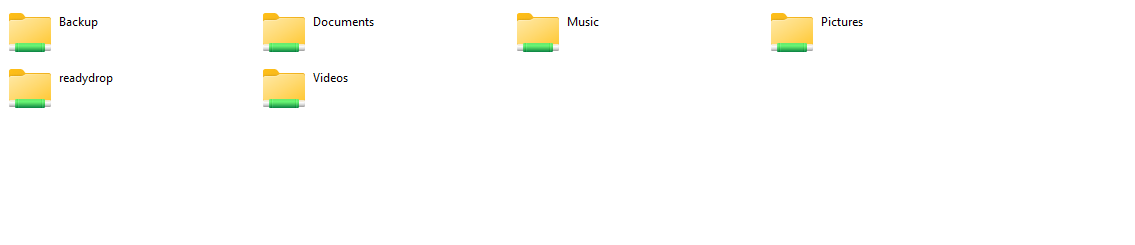
1766977995096.png
The above folders picture is from my desktop pc screenshot.
 
Doesn't your Netgear NAS have a DLNA service (ReadyDLNA) that you can turn on from inside its management interface?

From Google AI:


ReadyDLNA and ReadyCLOUD were two different, distinct services offered by NETGEAR for their ReadyNAS and router products.

  • ReadyCLOUD was a web portal and set of applications (desktop and mobile) that provided remote access, backup, synchronization, and file sharing capabilities for data stored on a NETGEAR ReadyNAS device or a USB drive connected to a compatible router. NETGEAR officially discontinued the ReadyCLOUD service on July 1, 2023, meaning its remote access functionalities are no longer available.
  • ReadyDLNA (Digital Living Network Alliance) is a media server feature that enables you to stream media content (movies, photos, music) locally to any DLNA/UPnP-compliant devices on your home network, such as smart TVs, game consoles (like Xbox or PlayStation), and media players. It functions purely within your local network and does not require an internet-based cloud service from NETGEAR.
  • In summary, ReadyCLOUD was for remote file management over the internet, while ReadyDLNA is for local media streaming within your home network.
 
Last edited:
Forgot to say.

- Sonos also behaves same way.
- But BlueOS of my Bluesound Node was great (it died after that only bought Wiim). BlueOS shows whatever I add recently under option called New in MusicLibrary. Amazing it was.
 
- Now, I see in WIIM when i go to my Home Library... WIIM refused to show the Readydrop folder where I added recent files. Its showing the standard folders Music, Pictures, etc folders only.
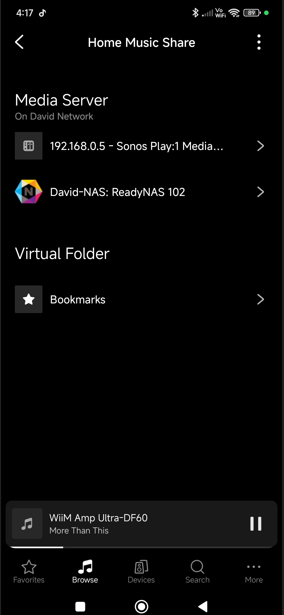
Are you accessing the ReadyNAS via 'Home Music Share > Media Server' or 'Home Music Share > Shared Folder'?

If you're currently browsing Media Server then add the network share (Home Music Share > vertical ellipsis > Add Shared Folder) and use that instead - assuming the NAS supports SMB v2.
 
Last edited:
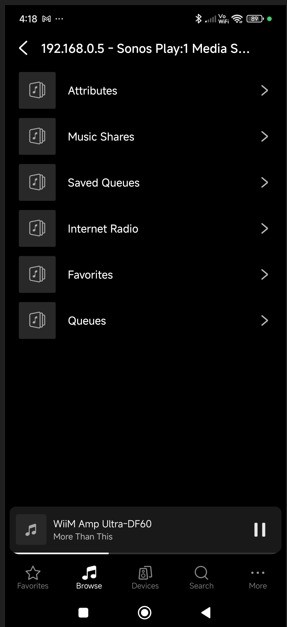
- How can WIIM see Sonos Play 1 as server if Sonos Play 1 itself is seeing my ReadyNAS as its source.
- So, if I switch off Sonos Play 1, WIIM wont show Sonos Play 1 in Media Server list, correct?
- What is happening above.
- Can learned member explain.
 
Last edited:
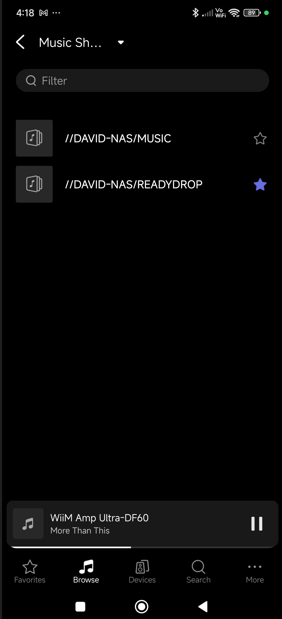
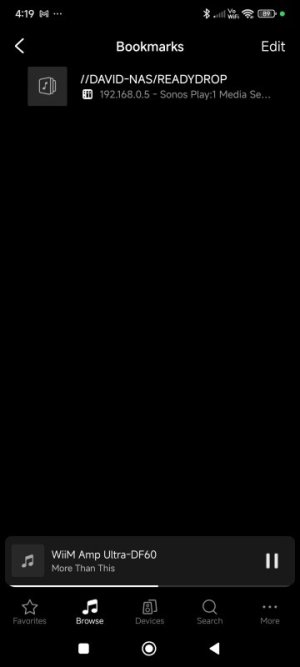
I found strange solution to my original problem. See screen short of this strange process.
Can't you just add the ReadyNAS as a Shared Folder in the WiiM Home app?

The reason you can't see Readydrop via Media Server is because it's not a folder that's being indexed on the NAS.
 
Last edited:
Can't you just add the ReadyNAS as a Shared Folder in the WiiM Home app?

The reason you can't see Readydrop via Media Server is because it's not a folder indexed by the media server.
Boss see first screenshot. ReadyNas is added automatically by WIIM. But somehow that Readydrop folder in NAS is not getting recogniszed may be as u said its not indexed or whatever ( i didnt create Readydrop by the way, its by default in NAS itself).
 
Boss see first screenshot. ReadyNas is added automatically by WIIM.
Any DLNA/UPnP media servers on the LAN will automatically appear under Media Server, but if you want access to Readydrop you'll need to browse the NAS via its SMB share (the same way as BluOS and Sonos).
 
Last edited:
Back
Top