


I tested the newly added "Standby Mode Source". To cut to the chase, this is a fantastic feature that solves half of the problem with Optical Auto-Sensing. 
Optical Auto-Sensing had an issue where it couldn’t automatically switch from HDMI to Optical. However, with this feature, it can now switch to the Optical input when in Standby Mode.
If the Ultra enters Standby Mode after you’ve been watching TV, the input switches to Optical. Then, when you play a CD via the Optical input, the Ultra automatically turns on and plays the CD. This eliminates the hassle of manually switching inputs.
However, there is one important point to note here. If you press the power button on the WiiM Remote, the Standby Mode Source switching feature will not work.
To reiterate, even if you press the remote’s power button to enter standby mode, the input will not switch to optical. Therefore, to use this feature, you must use the Auto Standby function.
Also, according to the app description, using this feature increases the device’s power consumption.
So, I checked this out.
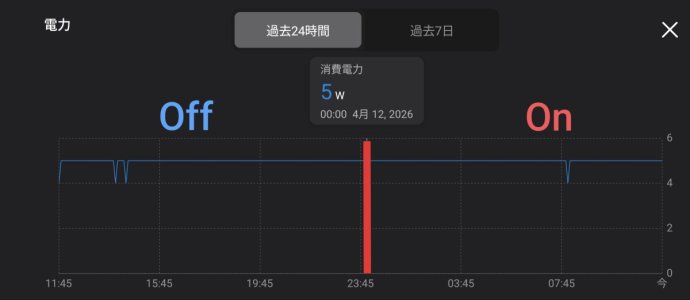
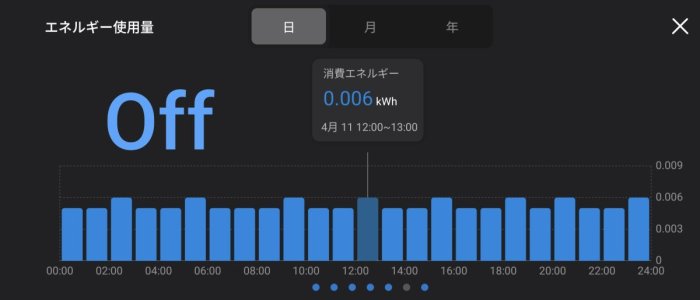
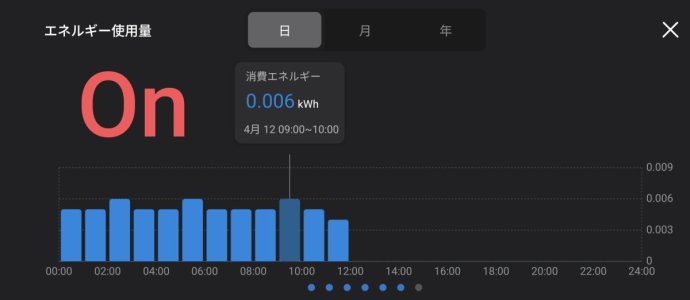
The Ultra’s power consumption in standby mode was consistently around 5W (0.005–0.006 kWh).
In fact, I don’t think your electricity bill will change even if you turn this feature on.
Thanks to the @WiiM Team for adding this great feature.
…And this is unrelated to the main topic. There seems to be a bug in another new feature, “Screen On/Off by Input.” If you set the screen for each input to “Off,” the clock will not display when the device enters standby mode.
There is a temporary workaround for this issue.
1. Change “Standby Mode Source” to “Optical Input.”
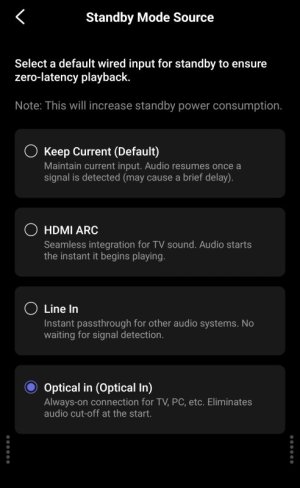
2. Turn on "Optical Input" under "Screen Display."
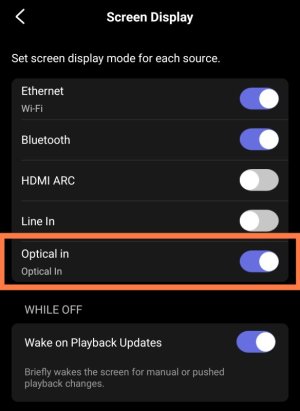
This ensures that, for example, after watching TV via HDMI, the Ultra’s screen will remain lit and display the clock even if the TV enters standby mode.
Of course, this should work just as well with inputs other than optical digital.
Thank you.
Optical Auto-Sensing had an issue where it couldn’t automatically switch from HDMI to Optical. However, with this feature, it can now switch to the Optical input when in Standby Mode.
If the Ultra enters Standby Mode after you’ve been watching TV, the input switches to Optical. Then, when you play a CD via the Optical input, the Ultra automatically turns on and plays the CD. This eliminates the hassle of manually switching inputs.
However, there is one important point to note here. If you press the power button on the WiiM Remote, the Standby Mode Source switching feature will not work.
To reiterate, even if you press the remote’s power button to enter standby mode, the input will not switch to optical. Therefore, to use this feature, you must use the Auto Standby function.
Also, according to the app description, using this feature increases the device’s power consumption.
So, I checked this out.
The Ultra’s power consumption in standby mode was consistently around 5W (0.005–0.006 kWh).
In fact, I don’t think your electricity bill will change even if you turn this feature on.
Thanks to the @WiiM Team for adding this great feature.
…And this is unrelated to the main topic. There seems to be a bug in another new feature, “Screen On/Off by Input.” If you set the screen for each input to “Off,” the clock will not display when the device enters standby mode.
There is a temporary workaround for this issue.
1. Change “Standby Mode Source” to “Optical Input.”
2. Turn on "Optical Input" under "Screen Display."
This ensures that, for example, after watching TV via HDMI, the Ultra’s screen will remain lit and display the clock even if the TV enters standby mode.
Of course, this should work just as well with inputs other than optical digital.
Thank you.


